Connect a Gmail / Google Account
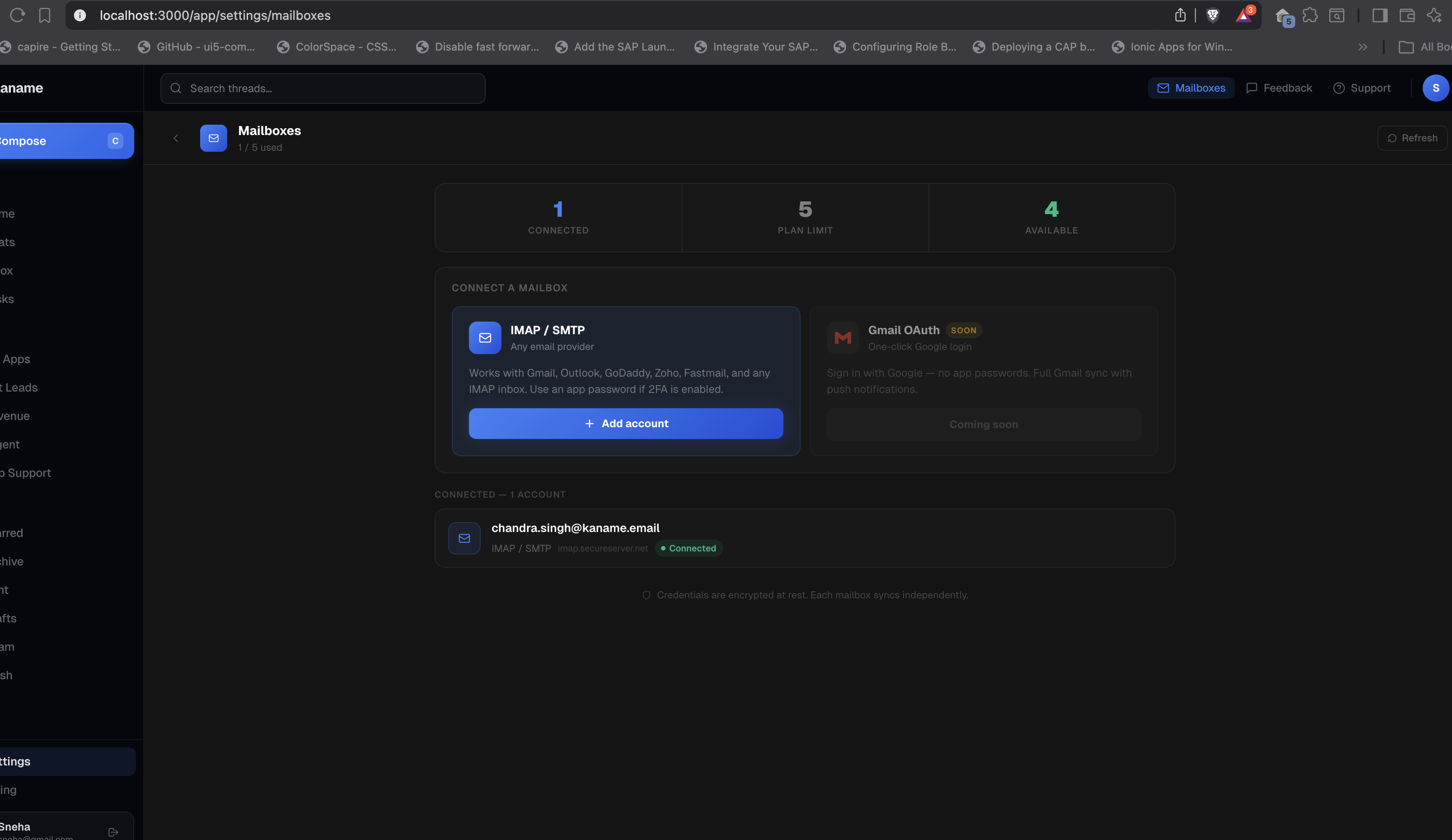
Gmail OAuth is coming soon. In the meantime, connect Gmail to Kaname via IMAP using an app-specific password — works with both personal Gmail and Google Workspace.
Gmail OAuth is coming soon. Direct one-click Google sign-in is under development. Until it launches, you can connect any Gmail or Google Workspace account to Kaname via IMAP/SMTP using a Google App Password — this works reliably and only takes a few minutes.
How to connect Gmail right now
Gmail supports IMAP access, but requires an App Password instead of your regular Google account password. App Passwords are 16-character codes that let third-party apps like Kaname access your email without exposing your main credentials.
Step 1: Enable 2-Step Verification (required)
App Passwords are only available when 2-Step Verification is turned on.
- Go to myaccount.google.com/security
- Under "How you sign in to Google", click 2-Step Verification
- Follow the prompts to enable it if it isn't already on
Step 2: Generate a Google App Password
- Go to myaccount.google.com/apppasswords
- Under "App name", type
Kaname(or any label you'll recognize) - Click Create
- Copy the 16-character password shown — you won't see it again
Save it now. This password is shown only once. Paste it somewhere safe while you complete the next steps.
Step 3: Add the mailbox in Kaname
- In Kaname, go to Settings → Mailboxes
Account details
- Email address — your full Gmail address (e.g.
[email protected]or[email protected]) - Display name — e.g. "Gmail", "Work Google"
- Password — the 16-character App Password from Step 2 (not your Google login password)
Incoming mail (IMAP)
| Field | Value |
|---|---|
| IMAP server | imap.gmail.com |
| IMAP port | 993 |
| Security | SSL / TLS |
Outgoing mail (SMTP)
| Field | Value |
|---|---|
| SMTP server | smtp.gmail.com |
| SMTP port | 465 |
| Security | SSL / TLS |
- Click Test connection — both IMAP and SMTP should pass
- Click Save mailbox
Kaname will begin syncing your Gmail threads immediately.
Enabling IMAP in Gmail (if the test fails)
Gmail sometimes has IMAP disabled by default. To check:
- Open Gmail in your browser
- Go to Settings (gear icon) → See all settings
- Click the Forwarding and POP/IMAP tab
- Under IMAP access, select Enable IMAP
- Click Save Changes
Then retry the connection test in Kaname.
Google Workspace accounts
Google Workspace accounts (company email on a custom domain routed through Google) work exactly the same way:
- Use your Workspace email address as the username
- Generate an App Password from your Google Account settings
- Use the same
imap.gmail.com/smtp.gmail.comserver settings
Note for Workspace admins: If users see errors connecting, check that IMAP is enabled org-wide at Google Admin → Apps → Google Workspace → Gmail → End User Access → IMAP Access.
Troubleshooting
"Authentication failed"
- Make sure you're using the App Password, not your Google account password
- Double-check the App Password was copied correctly (no spaces)
- Confirm 2-Step Verification is still enabled on the account
- Try regenerating a new App Password at myaccount.google.com/apppasswords
"Connection refused" or timeout
- Verify IMAP is enabled in Gmail settings (see above)
- Try SMTP port
587with STARTTLS if port465fails
I can't access App Passwords
- App Passwords are only available when 2-Step Verification is enabled
- If your Google Workspace org manages your account, your admin may have restricted App Password creation — contact your IT administrator
What's coming
Gmail OAuth (one-click authorization with no passwords) is currently in development and will be available soon. When it launches, you'll be able to connect Gmail accounts directly from Settings → Mailboxes without generating an App Password. Existing IMAP connections will continue to work normally.
Also see: Connect any other mailbox via IMAP / SMTP for Outlook, iCloud, Zoho, Fastmail, and custom servers.